
CARES allows you to enter one or more activity-specific notes, each with its own date, on each activity you create. You can do this while first creating the activity or you can edit any of your own existing activities to add notes later on. You can also edit existing notes.
Benefits of Activity-Specific Notes
Many OCR attorneys find it helpful to routinely enter activity-specific notes as a case management tool. In addition, as a state agency, OCR is required to conduct various audits of CARES billing. For example, OCR must review random samples of activities (e.g. phone calls or meetings) which occurred on the same date and could be accidental duplicates. If you enter activity-specific notes, they can differentiate and substantiate otherwise identical activities for OCR, which saves you from having to review potential duplicates with OCR later on. The same is true for various other OCR audits of activities. See also What Can My OCR Staff Attorney See?
Remember you can also search among all your notes in Cases > Office Activities. See All Activities Across Cases for more on this.
Add or Edit Notes
Within any activity, click the Add Note button to create and save a note (4,000 characters or less) as pictured below.
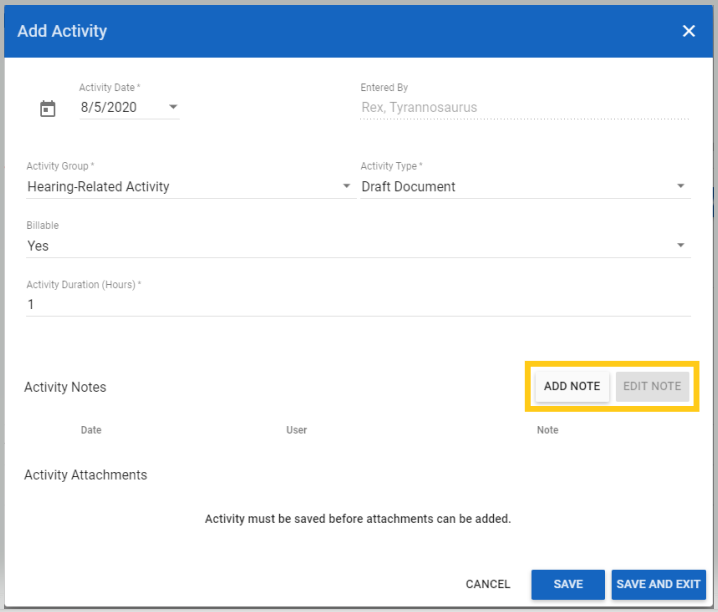
Check the checkbox beside existing notes then click Edit Note to make changes:

If you observe unexpected characters in your saved notes, such as question marks where you originally typed apostrophes, you most likely copy-pasted the text directly from MS Word, which has a distinct behind-the-scenes formatting style that is not compatible with most websites. This is only a cosmetic issue, but you can avoid it by pasting the text from Word into a plain text program like Notepad, then copy-paste it from Notepad into CARES (thereby discarding Word's hidden formatting).
Non-Activity-Specific Notes
Need to enter notes that are not specific to one activity? Use the Notes tab of the entire appointment instead (between the Involved Persons and Attachments tabs). See also What Can My OCR Staff Attorney See?