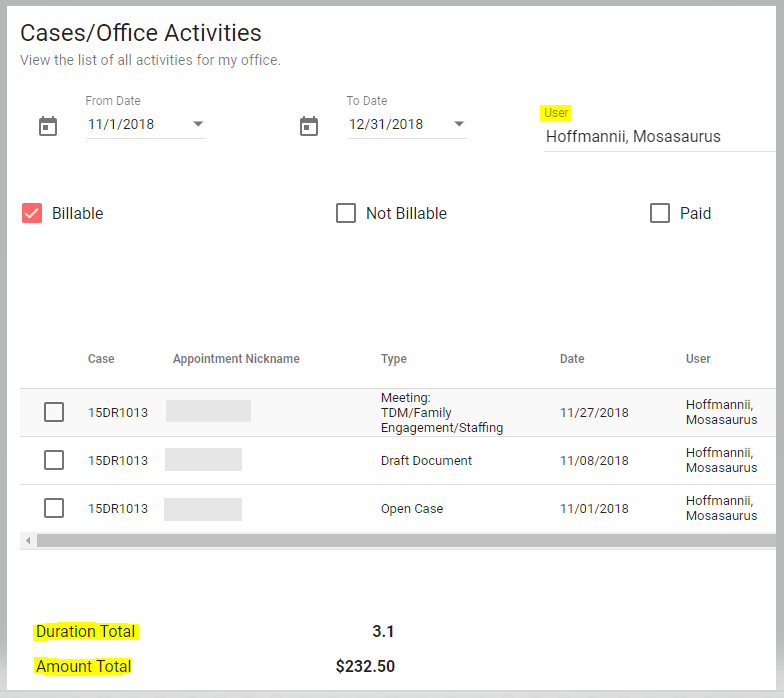
After your office enters any activities (see Enter an Activity), you will be able to click on Cases > Office Activities to find and filter all your office's activities across all cases. You cannot edit activities from this view but you can click the checkbox beside any activity to open it and view details. (Edit activities from the appointment itself.)
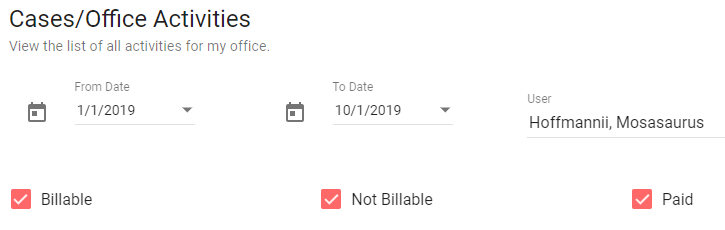
Search Across Cases:
Click on the "Go to Activity Notes View" button at the top for a notes- and attachments-focused view of the same list. Type a key word from one of your notes into the "Note Search" to filter the list for only those items containing a specific note.

Search in Groups:
Notice the "Appointment Group" filter at the top— if you have created such a group, this filter allows you to view activities from only that group of appointments. For example, if you are in court looking for notes on one child with multiple delinquency cases, use an Appointment Group and this Cases > Office Activities screen to search for notes within that group. More on making Appointment Groups

Duration and Amount Totals:
Notice the date, user, and other filters along the top of the screen to refine your office's list of activities--for example, you could change the drop-downs to reflect one date and one user and then click Search to see what one member of your office did on one day (or any timeframe). The Duration and Amount totals on the bottom will update based on your selections after clicking Search: