
The recommendations below are important for all online accounts, but you need to be especially careful about CARES. Keeping case information secure is critical to confidentiality. Please help protect CARES by following the recommendations below.
Device Security
Do not leave CARES logged in, unsaved, and unattended on any unlocked device. For added security, CARES will automatically log you out after 30 minutes of inactivity (discarding unsaved work). Make sure all the computers and devices with which you access CARES are secure (e.g. locked with a strong password when not in use) and up to date with anti-virus software.
Strong Password Practices
OCR recommends that you change your password once every three months (or use Two-Factor Authentication) and never share passwords. Choose a strong password that does not include words you would find in the dictionary. Simple passwords using regular dictionary words are vulnerable to "password dictionary attacks" that blitz through millions of word combinations in seconds to try to crack the code.
Whenever you set a new password in CARES, a Weak/Strong bar will change from red to green depending on the complexity of the password you enter. Always aim for a "Strong" password: make it long with as random a mix as possible of capital and lowercase letters and symbols.
Your Office Members
Contractors may request CARES access for office members by visiting User Settings > My Office and clicking "Add Staff" (or end access with "Remove Staff"). Any active members of your office in CARES will be able to view everything you can view in CARES. Two times per year, Managing Attorney and Managing Case Consultant personas will see a pop-up notice of their "active users," or active office members, and how to deactivate them if needed as a security reminder in case any of these individuals should no longer use CARES. More on this
Two-Factor Authentication
Taking less than a minute to set up two-factor authentication in CARES makes it far more difficult for someone dangerous to compromise your account. After turning on two-factor authentication, you do not need to regularly change your password; instead, CARES occasionally texts your mobile phone with information to access your account (message and data rates may apply). Now, even if a bad actor has your password, they cannot enter CARES because they do not have your mobile phone. (The FTC recommends starting two-factor authentication in all accounts that offer it, such as your email, to protect you from online attacks elsewhere too.)
OCR strongly encourages each member of each office to take the following steps to start using two-factor authentication in CARES. This is so important that you will see reminders from the get-go and every 10 days until this is set up. If you or your staff have not done so already:
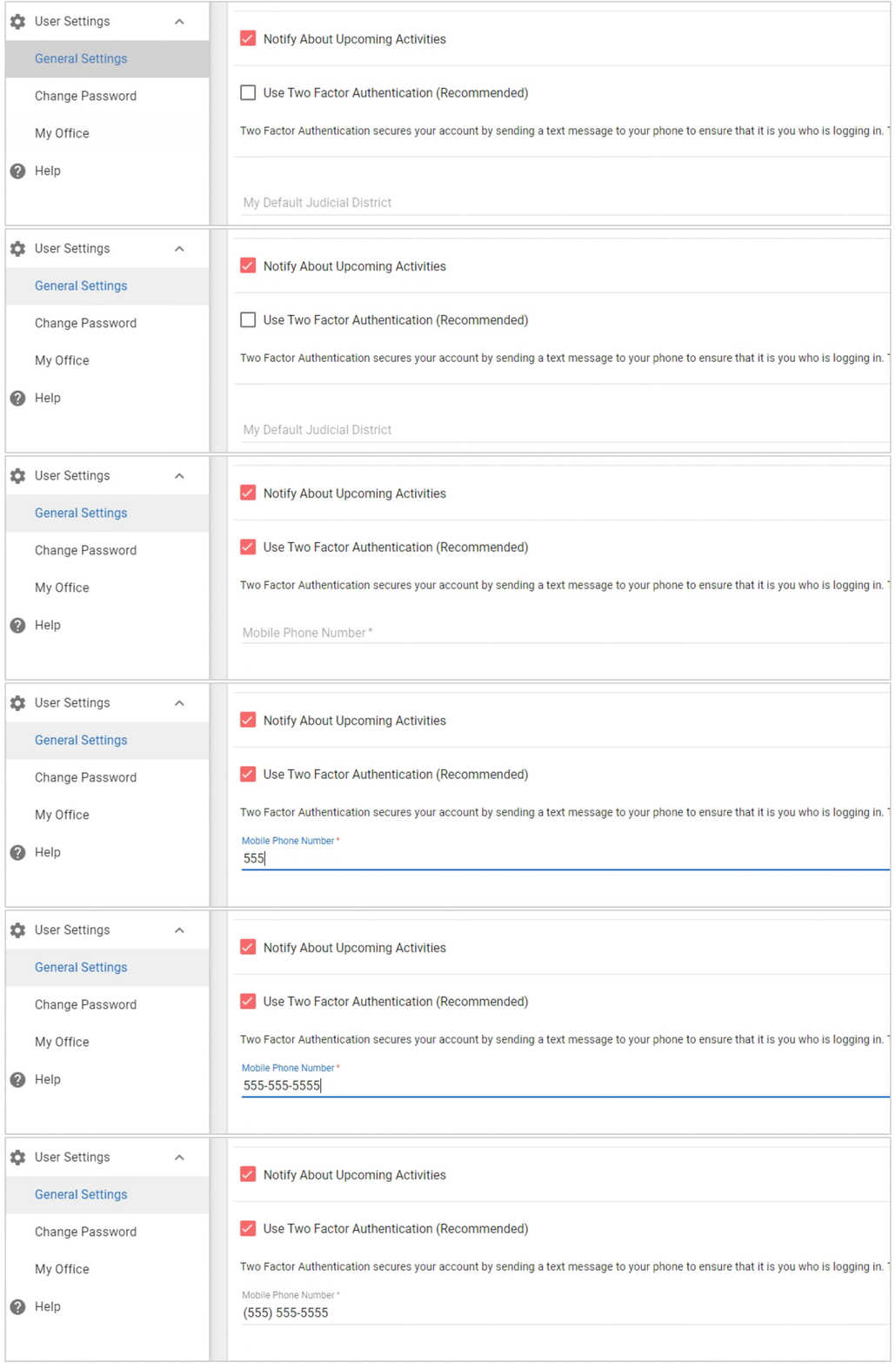
- From the main left side menu in CARES, click User Settings > General Settings. (Or, if you clicked "Quick Setup Now" from a pop-up reminder, you're already there!)
- Check the box beside Use Two Factor Authentication and enter your mobile phone number.
- Click Save in the upper right of the screen. Follow the prompts to verify your device based on a text sent to your phone.
- If you do not receive a text, click "I didn't receive a text" in CARES, and then try again. Make sure there are no typos in the number and that this phone is in your possession and can receive texts.
- If you do not receive a text, click "I didn't receive a text" in CARES, and then try again. Make sure there are no typos in the number and that this phone is in your possession and can receive texts.
Thank you! Now your office's accounts are each much more secure. After completing the steps above, the very next time you log into CARES, you will receive and enter another code. To keep your account secure, this will recur every so often and when you use a new device or clear your cache. Never re-text or tell someone else the code texted to your phone for CARES or any other website. Why not?
You can update this setting or your number by returning to User Settings > General Settings at any time—if your mobile number changes, be sure to update this setting as soon as possible. If you are prompted for a text code daily, your web browser may be set to clear its cache automatically at frequent intervals, and your IT support can help stop that from happening so often.
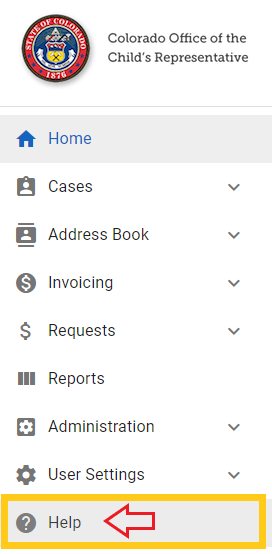
That's the end of the Quick Start Guide! Browse the CARES Help Center any time to learn more, and notice the "Search" box for key words. You can always find this Help Center by clicking "Help" at the bottom of the left-side menu in CARES:
Look for the search bars (pictured above) in this Help Center to type any key words then type Enter to see a list of relevant articles to click on. If you're new to CARES, we recommend checking out the following articles soon: