
The most common solutions to unsaved, missing, or lost data entries in CARES are below. If you need support after addressing all of these items below, please try the steps in Requesting Help.
Always Use a Supported Web Browser
CARES will only run properly in the following web browsers: Chrome, Firefox, and Safari. To avoid data loss, never access CARES through another web browser such as Internet Explorer or Microsoft Edge. To make sure you're using a supported browser:
-
Check your current web browser by clicking this link: https://www.whatsmybrowser.org/. If you find you have been running CARES in Internet Explorer, Microsoft Edge, or another unsupported browser, this is very often why you are experiencing errors and unsaved data. Remedy this by completing Step 2 below.
-
Download Chrome, Firefox, or Safari to use when accessing CARES. Save a CARES bookmark only in one of these browsers to help yourself remember you must use it to access CARES.
Use Only One Browser Tab
Do not work on CARES in more than one tab or window of the same web browser at the same time.(Note, it is okay to have the separate CARES reports website open in a different tab at the same time.) If you work on CARES itself in multiple windows of the same browser at the same time, that starts multiple instances or "sessions" of CARES. CARES gets confused about which version you intend to save, resulting in unsaved/lost data. You may see an "unauthorized" or "forbidden" message reflecting the confusion about multiple instances. Close all but one window/tab of CARES, refresh that window/tab if it will not save (see next), and make sure you are still logged in to CARES (vs. automatically logged out after 30 minutes in a different tab that was open longer).
Refresh
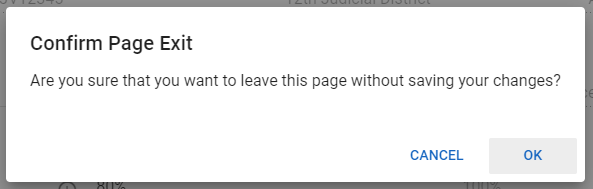
Refreshing your web browser can successfully reset CARES if you're encountering an "unauthorized" message or other errors and have already done the first two items in this article (using a supported browser and only one tab/window). Please note that you will lose any unsaved entries when you refresh your web browser. Click the circular arrow icon near where you type a web address OR type the Ctrl + F5 keys (Windows) or Cmd + R keys (Mac) at the same time to refresh your web browser. You may need to click "OK on the "Confirm Page Exit" message (pictured at bottom of article).
Quit and Restart Regularly
Restarting your web browser and your device may resolve a variety of immediate problems, and doing so regularly prevents future problems. For CARES and all computer functions to perform best, make a habit of completely quitting your web browser (Chrome, Firefox, or Safari) at least daily. On a Mac, this may require more than just closing the window. Restart each device (computer, phone, etc.) once a week for optimal performance.
Save Frequently
Be careful not to leave or close your device without saving first. For security, if you are inactive for 30 minutes, CARES will automatically log you out, meaning you will lose any unsaved appointments, activities, notes, etc.
CARES asks "are you sure?" if you actively navigate away from a screen without saving your changes. Click "OK" to exit and discard your changes; click "Cancel" (as in, you wish to cancel the previous command) to remain on the same page instead and save your work. Note that CARES will not ask this question if you have been inactive for 30 minutes (see above).
Clicking either "Cancel" or an "X" in the corner of any other window in CARES (or closing the entire web browser tab or window) will close the current screen of CARES without a warning and without saving changes. Look for a "Save" button whenever you intend to save your changes. After saving, you can close CARES without losing work.