
If your office was granted access to another office's appointment because you are an OCR-contracted Case Consultant, Mentor, Litigation Support, or an attorney providing coverage for another attorney, their appointment is accessible to you on the Other Offices' Appointments tab of your Cases > My Appointments screen. Marking a case "Inactive" allows you to differentiate the cases you are actively working from those you are done with. When your work is done, it is not your responsibility to close the other office's appointment, but you can mark it "inactive" to clean up your list:
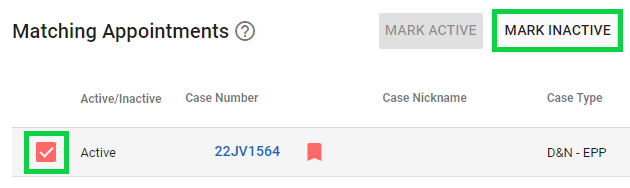
The Other Office's Appointments tab includes the option to "Mark Inactive" when your work is finished.
As shown above, check the box beside it and click the “Mark Inactive” button to remove it from your office’s list of active appointments without impacting the appointed office’s open/closed status. Please note that the person who requested original access is the only person who can change the Active/Inactive status, and that status will show throughout your office. The screen will not update immediately to hide the case until the next time you view this screen or refresh your filters to show only active appointments.
Ongoing Access:
All the appointments you have accessed remain available for your reference regardless of their open/closed or active/inactive status as long as the other office does not revoke your access. You can filter your screen using the options at the top and the magnifying glass to view Active and Inactive appointments (or any other combination), and you can mark inactive appointments active again if needed any time using "Mark Active." CARES will remember the search filters you select so they are there the next time you return to this screen, allowing you to save any preferred view.
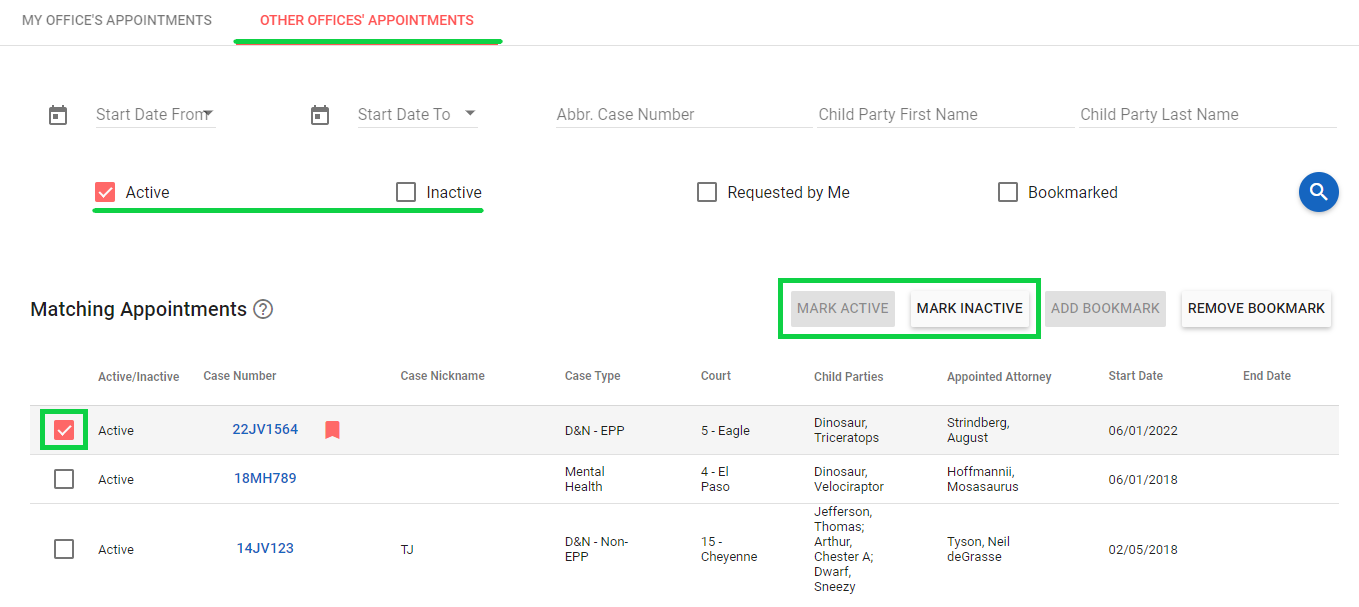
View Active Only:
If you need to see your active-only list quickly, remember you can always click the "Reset Filters" button in the upper right of your My Appointments screen any time to view your office's active appointments:

Why can't I mark a case active or inactive?
Active/Inactive statuses are only for appointments in the Other Offices' Appointments (second) tab of Cases > My Appointments. After checking the box beside one of these appointments, if the buttons are not available (greyed out), please note that the person who requested original access is the only person who can change the Active/Inactive status because they are effectively the "manager" of the request. Try the "Requested by Me" filter to see if you made the original request; if you did not, another member of your office made the request in their CARES account and will need to update the status. The status will show throughout your office after it is updated.
If you set up this appointment before 2022: Before 2022, CARES did not have the Other Offices' Appointments features described above and OCR asked you to create an appointment as if you were the attorney of record (this is no longer necessary but you may need to clean up older entries). After your work is finished, you can end any pre-2022 appointment like a regular appointment with child party end reason "Litigation Support Terminated."