
The Cases > Upcoming Activities screen offers a simple calendar function with optional Home Screen alerts for each user within CARES. After you have created at least one appointment in your office, you can schedule upcoming activities by navigating to Cases > Upcoming Activities or directly from an appointment's Activities tab. Click the blue Add Activity button in either location to add an upcoming activity to your CARES calendar. You can note the scheduled time in the "Title" of your upcoming activity if it is helpful. Find your individual calendar in Cases > Upcoming Activities:
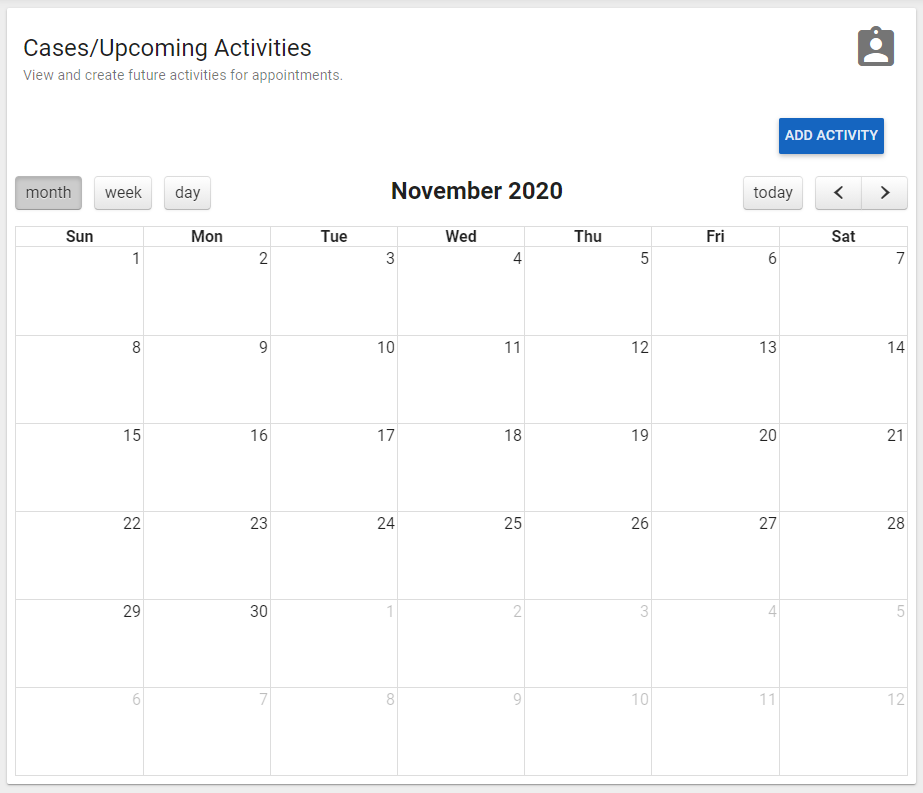
After the activity passes, you can click on it from Cases > Upcoming Activities, then "Save Final Activity" to convert it to a regular activity for invoicing, etc.
Each user can elect whether the Home Screen includes alerts about Upcoming Activities. After navigating to User Settings > General Settings on the left side menu, check or uncheck the box beside "Notify About Upcoming Activities" to show or hide alerts 48 hours in advance of your own upcoming activities on your Home Screen. Be sure to "Save" your user settings.