
Read below for a quick walk-through of how to navigate CARES. Remember that blue text (links) below mean you can click on that text for more detail on that topic.
Navigation Tips Throughout CARES
- If you don't know what to do next, look for a blue button—blue buttons in CARES suggest typical next steps.
- Red text or asterisks denote required information. The system will prevent you from saving a page or pop-up window unless you have entered data everywhere you see red text or an asterisk.
- Hover your mouse/cursor over question mark icons within CARES to see pop-up explanations or help article reminders.
- You may need to scroll up or down to see all of a window's or menu's options and requirements. Try scrolling if you can't save a window--maybe some required information is missing.
- If you see a spinning blue circle or progress bar, you should wait for it to stop before the current page and its menus will work properly.
- Always look for a Save button to save your changes. Clicking either "Cancel" or an "X" in the corner of a window in CARES will close the current screen without saving changes.
- Save entries regularly and if you get called away from your computer. For security, if you are inactive for 30 minutes, CARES will automatically log you out. This means you will lose any unsaved activities, notes, etc. Do not leave or close your device without saving open entries.
Left-Side Navigation Menu
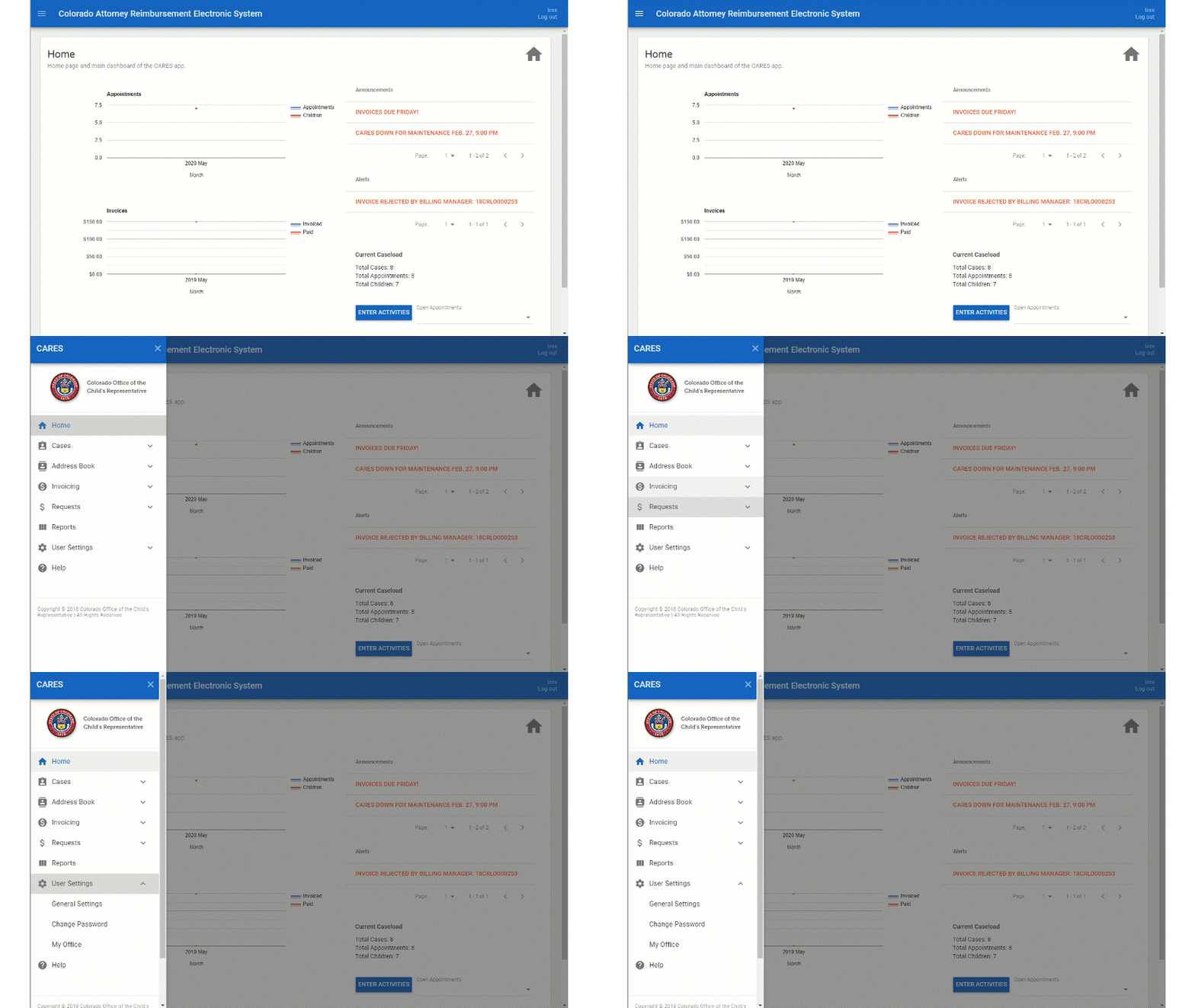
You will always have access to the left-side navigation menu in CARES. It either is open and already displayed on the left OR collapsed into an icon with three white bars. Click on that icon to open the menu if needed. Click on the words to navigate to each area or to select from the sub-menus.
Zoom In or Out
On supported web browsers (Chrome, Firefox, Safari), you can zoom in and out to change the font size and display. In CARES, if you are zoomed in, the left-side menu will collapse (see above); if you are zoomed out, it will always show. You may want to experiment with zooming to adjust your CARES screen display. Please note, zooming is not a CARES setting; it depends on your individual web browser's settings. More on this
Home Screen
The Home Screen will show some data, important announcements from OCR, and important alerts. You usually see the Home Screen when you log in, or you can find it by clicking "Home" on the left-side navigation menu. It's a helpful habit to skim the bright orange alerts on the right side of the Home Screen. Click on one to read and/or dismiss it. Some alerts cannot be dismissed; instead, to remove them, take the action they recommend. The Home Screen also shows charts of your caseload and invoicing--because they record monthly points in time, they will look blank in the beginning:
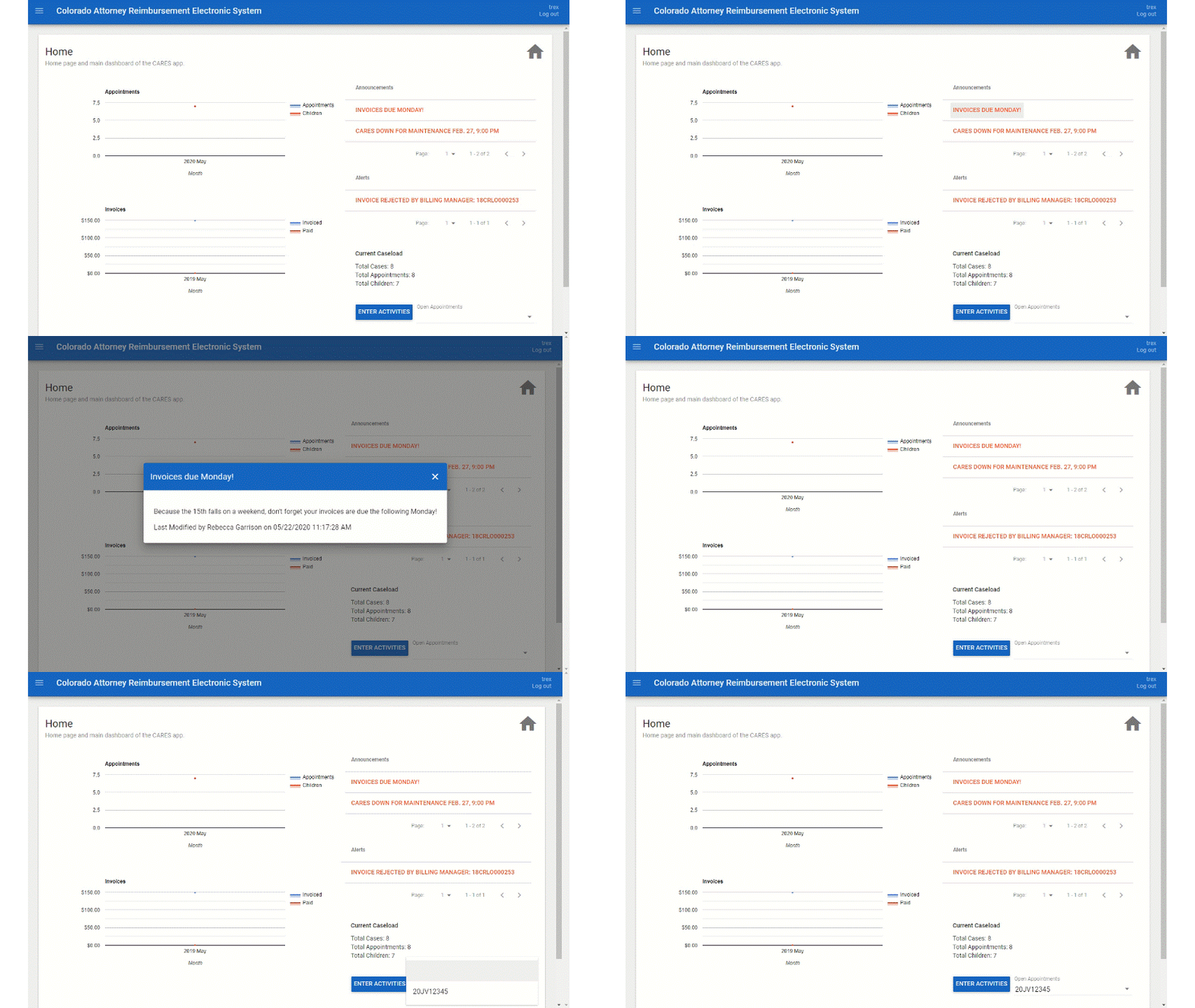
(Notice the blue "Enter Activities" button—if you have appointments, you can select one from the "Open Appointments" drop-down to the right and click "Enter Activities" as a shortcut to the activities in that appointment.)
Search Cases
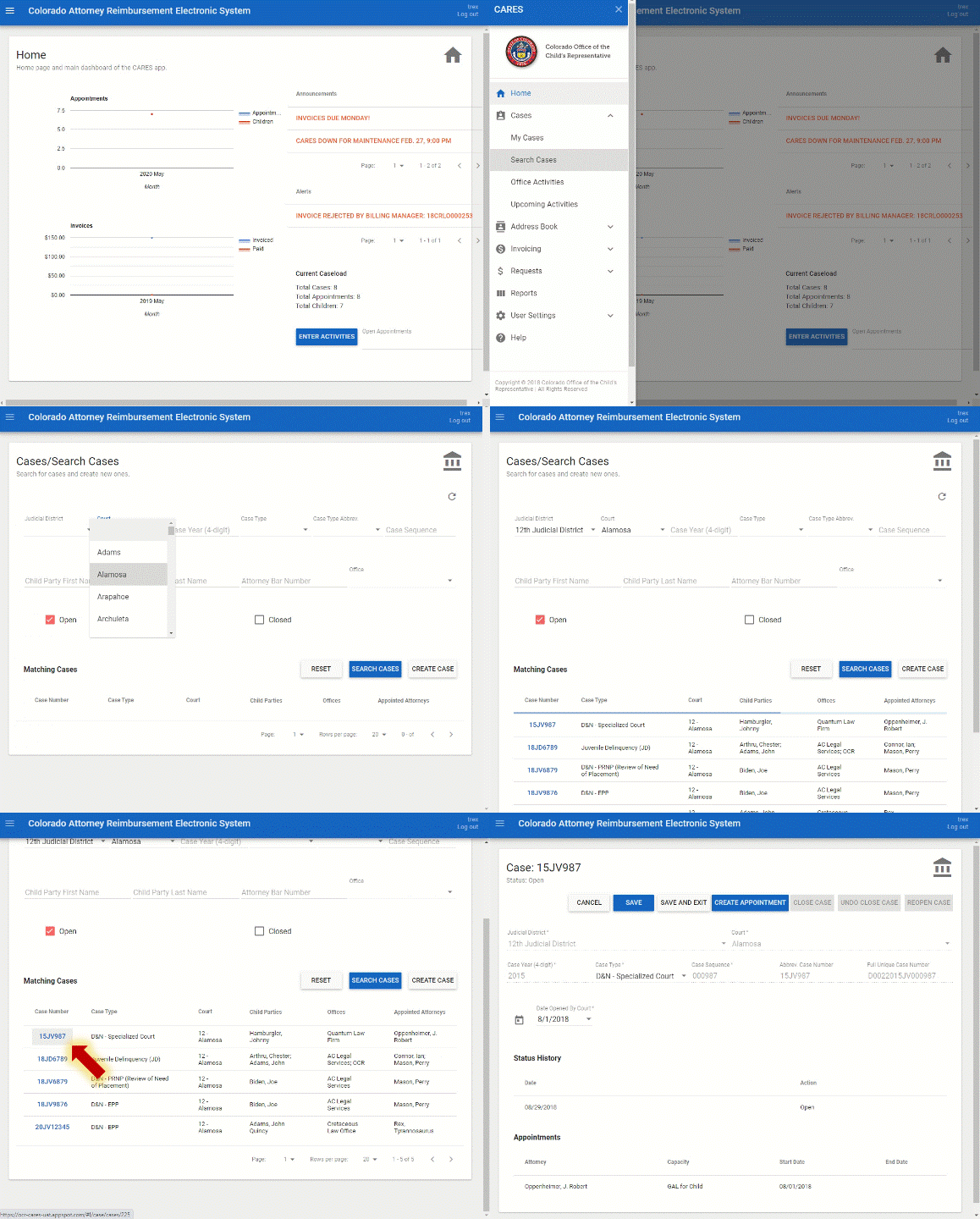
On the left-side menu, Cases > Search Cases gives you limited access to all cases in CARES. Click the Search Cases button to display a list of all cases (e.g., if you need to know who is appointed on a case). Notice you can refine your search by Attorney Bar Number, Office, Child Name, and more at the top. You must click Search Cases or type the Enter key to show any cases or update your search.
After finding a case, click on its blue case number to go to the details of that case, including “Appointments” at the bottom (attorneys appointed to this case). If your office is appointed, you can click the blue attorney’s name to access more details.
Efficient Search Tips
- If you are typing a word into a search field, you must type a whole word--CARES does not search based on partial words.
- Save search effort by entering minimal information such as only the county, year, and case sequence (the sequence is the end of the case number, e.g. 12JV1234); usually, this brings up a list short enough to skim for the case you need. Add criteria to filter the results more only if the list of results is still too long to be of use. You may notice that only "Open" cases are returned by default. Try checking the "Closed" case checkbox if you are having trouble finding a case.
- If you select a Court (county) first, CARES will fill in the judicial district for you. (Please note, most options in the "Court" dropdown are counties, but "Court of Appeals" and "Supreme Court" are also available.)
- You can click "Reset" to remove all search criteria and start over. To clear just one dropdown menu, open that dropdown menu and select the blank top row from the options, then search again.
Not finding what you need? Broaden your search: Remove filters and try only a year and county. Check the checkboxes for open and closed cases, then search again. Extra search specificity is not always faster, and you cannot search for some information specific to an appointment such as a child's name before that appointment exists (next up in the Quick Start Guide).